Managing stations: favourites – Orion TV32LBT981 Instrukcja Obsługi
Strona 16
- 15 -
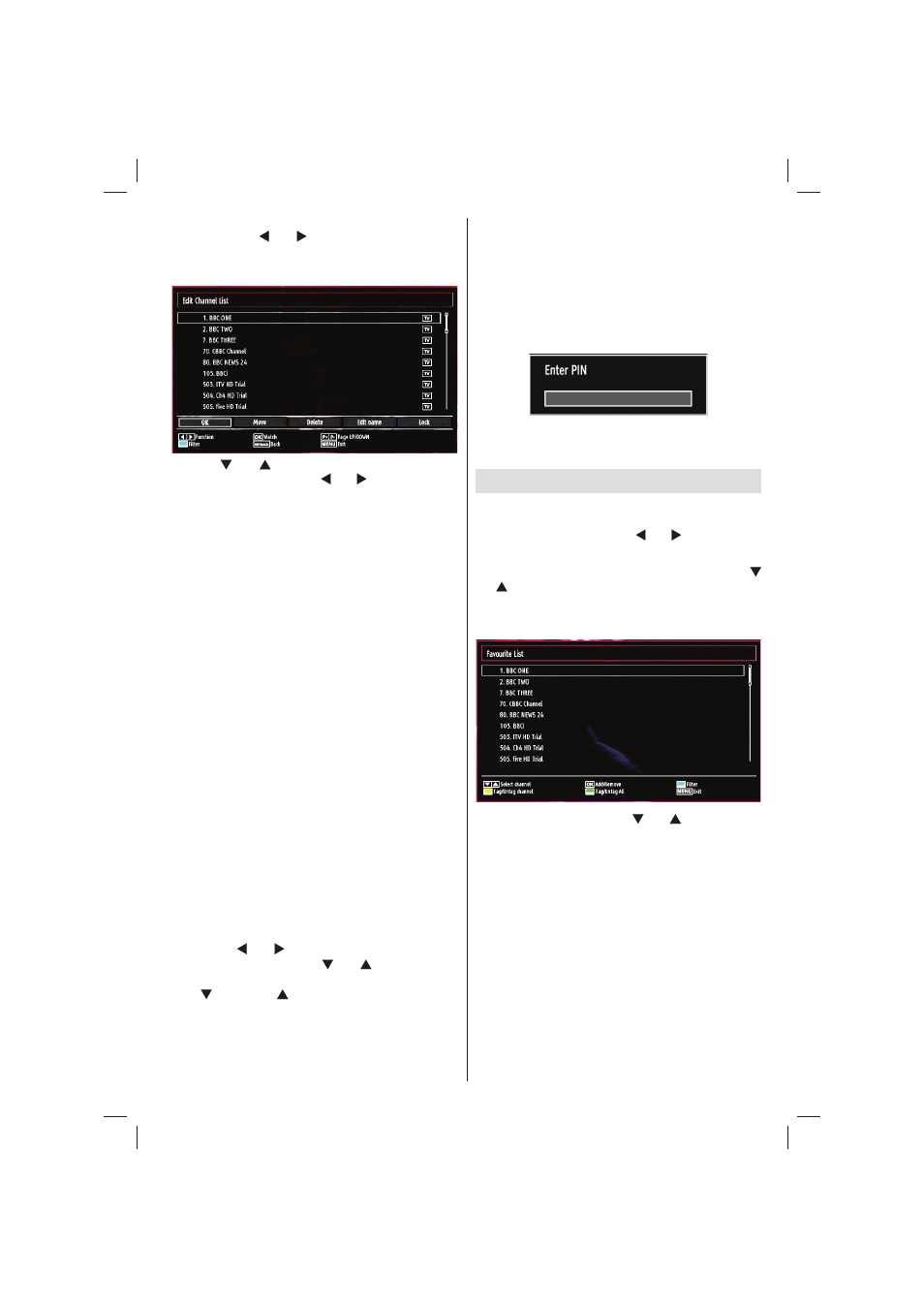
Select Edit Channel List to manage all stored
channels. Use “ ” or “ ” and OK buttons to select
Edit Channel List.
Operating the Channel List
Press “
•
” or “ ” button to select the channel that
will be processed. Press “ ” or “ ” button to select
a function on Channel List menu.
Use
•
P+/P- buttons to move page up or down.
Press
•
BLUE button to view fi ltering options.
Press
•
“MENU” button to exit.
Moving a Channel
First select the desired channel. Select Move option
•
in the channel list and press OK button.
Edit Number screen will be displayed. Enter the
•
desired channel number by using the numeric
buttons on the remote control. If there is a previously
stored channel on that number, a warning screen
will be displayed. Select Yes if you want to move the
channel and press OK.
Press
•
OK button to process. Selected channel is
now moved.
Deleting a Channel
You can press GREEN button to tag/untag all
channels; YELLOW button to tag/untag channel.
Select the channel that you want to delete and select
•
Delete option. Press OK button to continue.
A warning screen will appear. Select
•
YES to delete,
select No to cancel. Press OK button to continue.
Renaming a Channel
Select the channel that you want to rename and
•
select Edit Name option. Press OK button to
continue.
Pressing “
•
” or “ ” button moves to the previous/
next character. Pressing “ ” or “ ” button toggles
the current character, i.e., ‘b’ character becomes ‘a’
by “ ” and ‘c’ by “ ”. Pressing the numeric buttons
‘0...9’ replaces the highlighted character with the
characters printed above the button one by one as
the button is pressed.
When fi nished, press the
•
OK button to save. Press
“MENU” to cancel.
Locking a Channel
You can press GREEN button to tag/untag all
channels; YELLOW button to tag/untag a single
channel.
Select the channel that you want to lock and select
•
Lock option. Press OK button to continue.
You will be asked to enter parental control PIN.
•
Default PIN is set as 0000. Enter the PIN number.
Press
•
OK button when the desired channel is
highlighted to lock/unlock the channel. Lock symbol
will be displayed next to the selected channel.
Managing Stations: Favourites
You can create a list of favourite programmes.
Press
•
“MENU” button to view main menu. Select
Channel List item by using “ ” or “ ” button. Press
OK to view menu contents.
Select
•
Favourites to manage favourite list. Use “
”/“ ” and OK buttons to select Favourites.
You can set various channels as favourites so that
•
only the favourite channels are navigated.
Select a channel by using “
•
” or “ ” button. Press
OK button to add selected channel to the favourites
list. Press OK button again to remove.
Button Functions
OK
•
: Add/remove a station.
YELLOW
•
: Tag/untag a channel.
GREEN
•
: Tag/untag all channels.
BLUE
•
: Displays fi ltering options.
01_MB65_[GB]_DVB_TC_GOLD14_5100UK_32981WLED_10076855_50208202.indd Ksm1:15
01_MB65_[GB]_DVB_TC_GOLD14_5100UK_32981WLED_10076855_50208202.indd Ksm1:15
20.12.2011 17:06:49
20.12.2011 17:06:49